
5. A4 and A5
How to enter the transport to the building site (A4) and the installation (A5) of a window or door in the EPD Generator, and how the tool makes the A4 and A5 scenario information for EPD Hub.
5. A4 and A5
Module A4 is the transport of the product to the building site. Module A5 is the installation into the building. You enter the inputs on the Use tab of the product. The tool calculates the results and the scenario information of EN 15804+A2 Table 10 (A4) and Table 11 (A5). The method is in the methodology, section 6.6.2.
Transport to the building site (A4)
- Open the product, and then the Use tab.
- Under Transport to customer, add the route. Enter one or more legs. Give each leg a transport mode from the library and a distance in km. (P-22)
- Use the distances to your main markets. Keep your sales and delivery statistics as evidence.
The tool calculates the transported mass: the product mass plus the product packaging. You do not enter it. A product with no route has no A4 result.
The transport mode is a library part. Its data set gives six values. They are vehicle type, transport type, fuel type, "capacity utilisation", fuel consumption and power consumption. These values are fixed. On the EPD tab they show "From dataset", and you cannot change them.
Installation (A5)
Installation loss
- On the Use tab, open Installation loss.
- Enter the share of the product lost during installation: 0–100 %. (P-23)
The lost product adds its production, its transport (A4) and its end of life to A5.
Installation inputs
- On the Use tab, under Installation, add the energy, the water and the ancillary materials used to install one product. (P-24)
- Enter each amount per declared unit. Do not enter an amount per year.
You can add a utility, a material or a standard part, for example the fixings. Each part can be added one time. The tool books each input one time in A5. It does not multiply it by the reference service life (RSL).
NOTE: The tool books the production of an ancillary material in A5. It does not book the end of life of fixings that stay in the building.
Packaging waste
The packaging of the product becomes waste at installation. The tool takes the packaging from step 4 and its end-of-life scenario from the library. You do not enter it again.
A4 and A5 scenario information on the EPD tab
When the EPD declares A4 or A5, the EPD tab shows two scenario cards under EPD details. They are "Transport to site scenario (A4)" and "Installation scenario (A5)". The tool fills each value from your inputs. Each value has a badge:
| Badge | Meaning |
|---|---|
| Calculated | The tool calculated the value from your inputs. |
| From dataset | The value comes from the library data set. You cannot change it. |
| Default | The tool used a default value, for example a "volume capacity utilisation factor" of 1. |
| Not modelled yet | The tool does not calculate this value. Enter it only if you have a source. |
| Edited | You changed the value. Reset gives the calculated value again. |
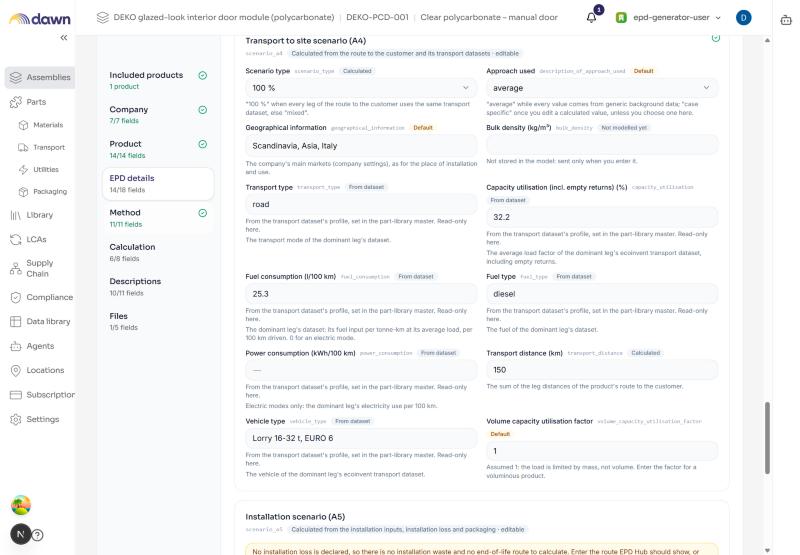
To change a value (P-50 for A4, P-51 for A5):
- Enter the new value in the scenario card.
- Select Save changes.
- Keep the source of the new value.
A changed value changes the declaration only. It does not change the results. If the value drives the results, for example the distance, the tool shows a warning. The approach then becomes "case specific". Change the input on the Use tab instead, so that the results and the declaration agree.
Next step
Go to 6. Use stage B1–B7.
