
9. EPD tab
How to make an EPD draft on the EPD tab of the EPD Generator: the declared modules, the EPD details and scenarios, the texts, and the fields that EPD Hub needs.
9. EPD tab
The EPD tab of a product holds the EPD draft. The draft contains every field of the EPD Hub request. The tool fills most fields from the product model and the tool version. You complete the rest and examine all of them.
Create the EPD draft
- Open the product, and then the EPD tab.
- Select Create EPD, and then one of these:
- For this product: an EPD of one product.
- For all variants of this assembly: one EPD for the base product and its variants.
- For multiple products…: one EPD for products that you select. See 8. Multi-product and multi-site EPDs.
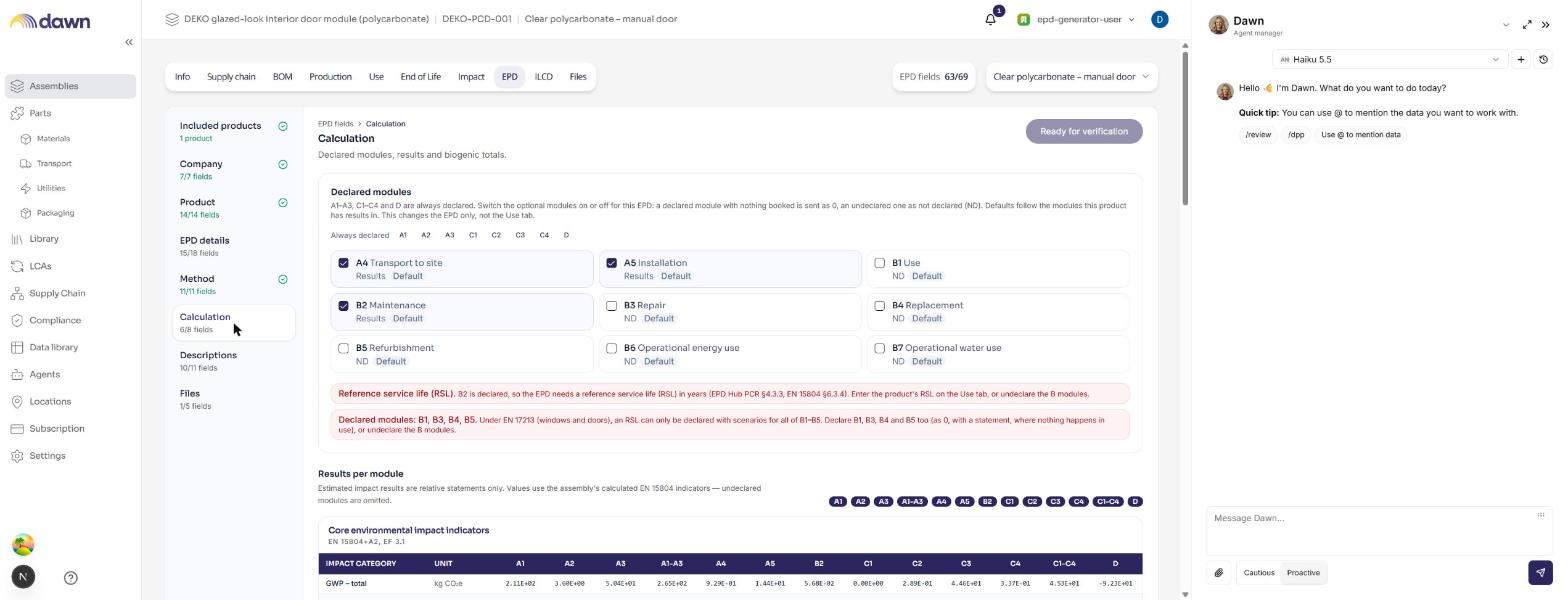
The draft shows the counter EPD fields, for example "63/69". It counts the necessary fields that have a value.
Sections of the draft
The draft has these sections. Complete them in this order.
| Section | Content | What you do |
|---|---|---|
| Included products | The products that the EPD covers | Examine the list. |
| Company | Manufacturer name, address, email, VAT number, website, EPD author | Complete the company data in Settings (P-42). Enter the EPD author. |
| Product | Product name and description, production site, packaging type, declared unit, mass per declared unit, main materials | Enter the place of production and the packaging type (P-34, P-35). Examine the calculated values. With the EN 17213 feature, you can enter the U-value and the g-value (P-58, P-59). |
| EPD details | Product sector and type, data period, type of verification, site and product representation, grouping, substances, and the scenarios of A4, A5, B1–B7, C1–C4 and module D | Complete the fields (P-33, P-37 to P-40). Examine each scenario card. |
| Method | Core PCR, c-PCR, programme operator, background database and version, allocation, cut-off rules, LCA software | Examine only. These values come from the tool version. |
| Calculation | Declared modules, results per module, biogenic carbon, GWP-GHG | Select the declared modules (P-44). Examine the results. |
| Descriptions | The texts of each life cycle stage, electricity, data quality, application and audience | Examine and correct the AI drafts (P-36). |
| Files | The files for EPD Hub | See the note below. |
NOTE: The Impact tab of a product is the live working view. Its total is the sum of all stages, A1–C4 and module D. Module D shows the gross benefits, before the net-flow rule. The EPD tables apply the EN 15804+A2 rules, for example re-priced reports, packaging biogenic carbon and module D as a net flow. They also include the waste treatment of production waste (A3) and of installation loss (A5). The declared values are the values in the EPD tables.
Declared unit
The EPD declares its results per declared unit: 1 item, 1 m² or 1 kg. The PCR sets the declared unit, or your organisation selects it in Settings › EPD tool (P-56). You model one produced item, and the tool converts the results, the masses and the scenario amounts.
- The Product section shows the declared unit and the mass per declared unit.
- The Calculation section shows the basis above the results, for example "Results per 1 m² (one item = 1.8204 m²)".
If the heading is "Results per produced item", the tool cannot convert the product yet. The message under the heading names the missing value: the width or the height on the Info tab › Dimensions card (P-57), or the mass of the parts on the BOM tab. The draft then has an issue of the kind "missing", and "Submit for review" is not available.
Technical characteristics
If your organisation has the EN 17213 feature, the Product section has the card Technical characteristics (EN 17213). You can enter the thermal transmittance (U-value) in W/m²K and the solar factor (g-value) (P-58, P-59). Both values are optional. Determine them according to the product standard (EN 14351-1). The tool states them after the product description in the EPD Hub request and in the ILCD+EPD data set.
Declared modules
- Open Calculation.
- Under Declared modules, tick each optional module that the EPD declares: A4, A5 and B1–B7. You cannot change a module that shows "Set by the PCR". The PCR always declares this module, or never declares it.
- Select Save changes.
A1–A3, C1–C4 and module D are always declared. A ticked module with no results is declared as 0, and the tool sends it as 0. A module that is not ticked is "ND" (not declared), and the tool leaves it out. Each module shows "Default" until you change it, or "Set by the PCR". It also shows "Results" or "ND".
The tool shows a message under the modules when a rule is not met. An example is a B module without a reference service life (RSL). Correct the input on the Use tab, or change the declared modules.
Scenario cards
Under EPD details, each declared stage has a scenario card. The cards show the EN 15804+A2 scenario information. The badges are explained in 5. A4 and A5.
- Change a value only if you have a source for it. A changed value changes the declaration, not the results.
- For the use stage, select the default scenario and write the deviation justification. See the use-stage page, step 5.
- For C1–C4 and module D, see 7. C1–C4 and module D.
Texts
The AI assistant writes a first draft of each text from the product data. The tool sends a text only for a declared module.
- Open Descriptions.
- Read each text against the model. Remove each statement that the model does not support.
- Correct the text, and then select Save changes.
CAUTION: The AI draft is written when you create the EPD draft. It does not change when you change an input later. After you change an input, examine the texts again. The verifier compares each number in the text with the results.
Substances
- Under EPD details, add each REACH candidate-list substance and each substance of very high concern (SVHC) above 0.1 % by mass. Give the name, the CAS number and the share in % by mass.
- Confirm both declarations. "Submit for review" needs both confirmations.
Issues
The tool lists the issues of the draft. Each issue has a kind:
| Kind | Meaning | What you do |
|---|---|---|
| missing | A necessary value is empty. | Enter the value. |
| invalid | A value breaks a rule, for example a declared module whose inputs are not booked. | Correct the input. |
| warning | A value needs your attention. | Examine the value and keep the reason for it. |
| notCalculated | The tool does not calculate the field, for example an EN 15804+A1 indicator. | No action. |
NOTE: "Submit for review" is not available while an issue of the kind "missing" or "invalid" is open, except the file uploads.
CAUTION: "Submit for review" does not stop on a "warning". Write down the reason for each "warning" that stays.
NOTE: The upload of files to EPD Hub is not available yet. The Files section lists them as missing.
Next step
Go to 10. Internal review.
